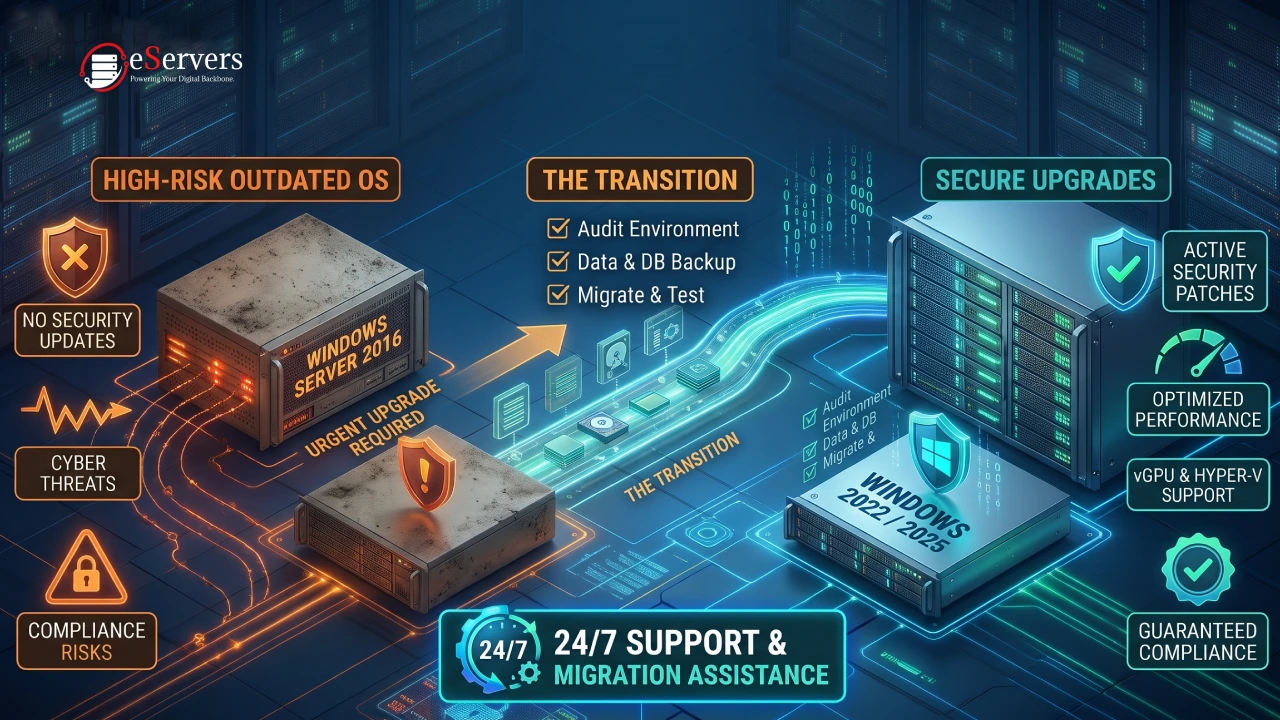



Windows Server 2016 reaches End of Support on 12 January 2027. For UK businesses running applications, databases, and production workloads on dedicated servers, this deadline requires careful planning. Once regular support ends, systems will no longer receive standard security updates, bug fixes, or technical support from Microsoft.
For IT managers and system administrators, migrating away from Windows Server 2016 is not simply an operating system upgrade. It involves checking application compatibility, protecting business data, planning infrastructure changes, and ensuring service continuity.
With the deadline approaching, businesses should evaluate their upgrade options, including Windows Server 2022 and Windows Server 2025, and decide whether their existing dedicated server hardware remains suitable for future workloads.
This guide explains what Windows Server 2016 End of Support means, the risks of continuing to use an unsupported operating system, available Extended Security Updates (ESU), and the steps UK businesses should take to plan a secure server migration.
What Does Windows Server 2016 End of Support Mean?
Microsoft has confirmed that Windows Server 2016 will reach the end of its extended support period on 12 January 2027.
After this date, Windows Server 2016 will no longer receive regular maintenance and support from Microsoft. Existing installations may continue to operate, but they will no longer benefit from the standard support services provided during the product's supported lifecycle.
The main changes include:
Security Updates: After the final January 2027 security update, installations without eligible Extended Security Updates (ESU) will no longer receive regular security patches for newly discovered vulnerabilities.
Bug Fixes: Microsoft will no longer provide standard non-security bug fixes for Windows Server 2016.
Technical Support: Windows Server 2016 will no longer receive regular technical support through its standard product support lifecycle.
Software Compatibility: Third-party software vendors may gradually discontinue support for Windows Server 2016, limiting access to future application updates, integrations, and security improvements.
It is important to understand that End of Support does not mean your dedicated server will stop working on 12 January 2027. However, continuing to operate an unsupported operating system increases maintenance, security, and compatibility risks.
The Security and Operational Risks of Running Windows Server 2016 After EOS
Continuing to use Windows Server 2016 after its End of Support date can create significant challenges for businesses operating production infrastructure.
For organisations hosting customer applications, business databases, websites, and internal services, the risks extend beyond the operating system itself.
1. Increased Exposure to Unpatched Vulnerabilities
Security vulnerabilities are regularly discovered in operating systems and other software components. Microsoft security updates help address these weaknesses and reduce the risk of exploitation.
Once regular support ends, Windows Server 2016 installations without ESU coverage will no longer receive standard security patches.
This can leave known vulnerabilities unresolved, particularly on servers exposing services such as Remote Desktop Protocol (RDP), web applications, database endpoints, or other network-facing services.
Attackers may exploit unpatched vulnerabilities to gain unauthorised access, deploy malware, compromise business data, or disrupt critical services.
Businesses should therefore review their exposed services, firewall policies, access controls, and vulnerability management processes before the support deadline.
2. UK GDPR and Regulatory Compliance Risks
UK businesses processing personal information must maintain appropriate technical and organisational measures to protect that data.
Under the UK General Data Protection Regulation (UK GDPR) and the Data Protection Act 2018, organisations are responsible for implementing suitable security controls based on the risks associated with their data processing activities.
Running an unsupported operating system can make it harder to demonstrate effective vulnerability management and adequate security practices.
Businesses handling payment information must also consider their applicable Payment Card Industry Data Security Standard (PCI DSS) requirements.
An unsupported operating system does not automatically mean a business is in breach of every applicable regulation. However, continuing to use an operating system without regular security updates can create significant compliance and audit challenges.
IT teams should review their security policies, risk assessments, and applicable compliance requirements when deciding whether to migrate or temporarily use an ESU programme.
3. Application and Software Compatibility Problems
Operating system support is closely connected to the software running on top of it.
As application vendors release newer versions of their products, they may introduce updated system requirements and discontinue support for older Windows Server versions.
This can affect:
Database management systems and application servers.
Hosting control panels and management software.
Backup and disaster recovery applications.
Security agents and endpoint protection tools.
Monitoring and infrastructure management platforms.
Custom business applications and integrations.
For example, an application that currently works on Windows Server 2016 may not support the same configuration on Windows Server 2025 without additional testing or changes.
Businesses should check vendor compatibility documentation before selecting a replacement operating system.
4. Legacy Hardware and Driver Compatibility
Newer dedicated server platforms introduce changes to processors, memory, storage controllers, network adapters, and firmware.
Although Windows Server 2016 can operate on many hardware configurations that support it, older operating systems may not support every driver, firmware feature, or management capability available on newer platforms.
Before migrating to new bare metal hardware, system administrators should verify:
CPU and motherboard compatibility.
BIOS and UEFI firmware requirements.
RAID and storage controller drivers.
NVMe storage support.
Network interface card drivers.
Memory capacity and hardware requirements.
Selecting a compatible hardware and operating system combination helps avoid installation problems and unexpected performance issues after deployment.
Windows Server 2016 Extended Security Updates (ESU): Can Businesses Delay Migration?
Businesses that cannot complete their migration before January 2027 may be able to use Microsoft's Extended Security Updates (ESU) programme.
ESU provides eligible organisations with additional security updates after the standard support period ends. It is designed as a temporary solution for businesses that require more time to migrate legacy systems.
However, ESU should not be treated as a permanent replacement for a supported operating system.
Key considerations include:
Additional Security Coverage: ESU provides eligible security updates for supported vulnerabilities. It does not restore the full standard support lifecycle.
Edition Eligibility: Windows Server 2016 Standard and Datacenter editions have ESU options, subject to Microsoft's eligibility requirements. Windows Server Essentials is not eligible.
Additional Licensing Costs: ESU involves additional licensing costs. Pricing and purchasing requirements depend on the applicable licensing arrangement.
Migration Planning: Businesses should continue preparing their migration even if they purchase ESU coverage.
For most organisations, ESU is best considered a temporary security measure while completing compatibility testing, application migration, and infrastructure modernisation.
Businesses should consult Microsoft's official ESU documentation or their licensing provider to confirm current eligibility, pricing, and purchasing requirements.
Choosing Your Upgrade Path: Windows Server 2022 vs Windows Server 2025
Moving away from Windows Server 2016 provides an opportunity to modernise your server environment and improve its long-term security and infrastructure capabilities.
Windows Server 2022 and Windows Server 2025 are two potential upgrade destinations, depending on application requirements, hardware compatibility, and the organisation's infrastructure strategy.
Windows Server 2022: A Mature Enterprise Platform
Windows Server 2022 is a suitable option for businesses that require a mature server platform with established application compatibility.
Its key capabilities include:
Advanced Security: Secured-core server capabilities help protect supported hardware and operating system components against firmware-level and other advanced threats.
TLS 1.3 Support: Provides modern transport security for supported network communications.
Improved Hybrid Capabilities: Supports integration with Azure services and hybrid infrastructure management.
Storage Improvements: Includes improvements to storage migration and infrastructure management.
Container Support: Provides capabilities for running Windows containers and modern application workloads.
Businesses with existing applications that have been validated for Windows Server 2022 may find it a practical migration destination.
Windows Server 2025: Modern Infrastructure Capabilities
Windows Server 2025 introduces additional improvements for organisations building or upgrading modern enterprise infrastructure.
Important capabilities include:
Active Directory Improvements: Introduces features such as optional 32K database page support, providing additional flexibility for directory services.
Credential Guard: Enabled by default on supported hardware and configurations to help protect credential information.
NVMe Storage Performance: Introduces improvements designed to increase storage performance for compatible NVMe configurations.
Hyper-V Scalability: Includes improvements for virtualisation environments and large-scale workloads.
Hotpatching: Supports hotpatching scenarios through Azure Arc-enabled infrastructure, subject to applicable configuration and service requirements.
These capabilities can benefit businesses operating virtualised environments, databases, and storage-intensive applications.
However, the best operating system depends on application compatibility, server hardware, licensing, and workload requirements. Businesses should test their applications before selecting the final migration target.
How eServers.uk Supports Your Windows Server Upgrade
Choosing the right operating system is only one part of a successful migration. Your underlying dedicated server hardware, network connectivity, and technical support arrangements also play an important role.
At eServers.uk, businesses can configure dedicated infrastructure with modern Windows Server operating systems to support a range of enterprise workloads.
UK Dedicated Server Infrastructure
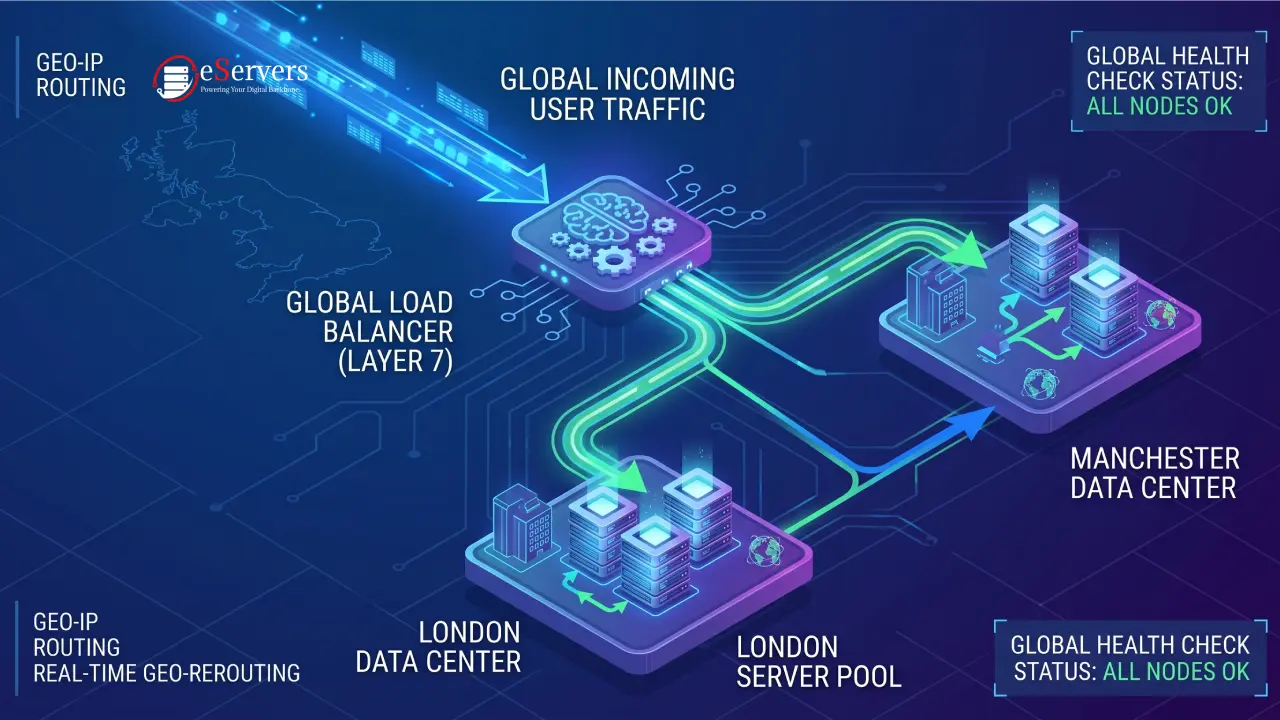
Deploy your applications and services on dedicated server hardware located in eServers' UK data centre locations.
Choosing an appropriate server location can help businesses meet infrastructure requirements and reduce network latency for users accessing UK-hosted applications.
Explore our UK Bare Metal Dedicated Servers to review available hardware configurations and infrastructure options.
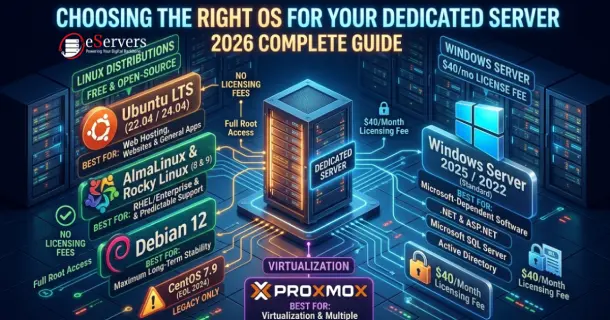
Windows Server Operating System Options
eServers provides Windows Server operating system options, including Windows Server 2016, 2019, 2022, and 2025, subject to the availability of the selected configuration.
The standard Windows Server licence is available at a published rate of $40 per month, subject to the applicable licensing terms.
Customers should confirm the selected edition, licensing requirements, and configuration availability before provisioning.
Free Operating System Reinstallation
Testing a new operating system or preparing a fresh server environment often requires an OS reinstallation.
eServers provides free OS reinstallation for eligible existing customers, allowing system administrators to reinstall supported operating systems without an additional reinstallation charge.
Please note that an OS reinstallation is different from a complete application, database, or server migration. Businesses remain responsible for backing up and transferring their data unless separate migration assistance has been agreed.
24/7 Technical Support
Server migrations can involve network configuration, operating system installation, hardware troubleshooting, and deployment-related issues.
eServers offers 24/7 technical support to assist customers with infrastructure-related queries and server configuration requirements.
For migration planning and configuration questions, customers can contact the eServers Support Team.
Windows Server 2016 Migration Checklist for UK Businesses
A successful Windows Server migration requires more than installing a newer operating system. IT teams should follow a structured process to protect business data, maintain application availability, and reduce deployment risks.
1. Audit Your Existing Server Environment
Identify all physical and virtual machines currently running Windows Server 2016.
Document:
Installed applications and services.
Active Directory roles and domain dependencies.
Database instances and application connections.
Storage configurations and allocated capacity.
Network interfaces, IP addresses, and firewall rules.
Backup schedules and disaster recovery arrangements.
This inventory helps identify migration dependencies before any infrastructure changes begin.
2. Verify Application and Hardware Compatibility
Check whether your applications, databases, management tools, and security software support the selected Windows Server version.
Review hardware compatibility requirements for the new dedicated server, including CPU architecture, RAM capacity, storage controllers, NVMe devices, and network adapters.
Where possible, obtain written compatibility confirmation from application vendors.
3. Create and Verify Backups
Before migration begins, create reliable backups of:
Business databases.
Application files and configuration data.
Active Directory system state, where applicable.
DNS and network configuration.
User data and access permissions.
Relevant server roles and service settings.
A backup should not be considered reliable until the restore process has been tested.
Keep a documented recovery plan so that critical services can be restored if the migration encounters unexpected problems.
4. Provision New Dedicated Server Hardware
For production environments, deploying a separate server with a clean operating system installation can reduce the risks associated with upgrading an existing production system.
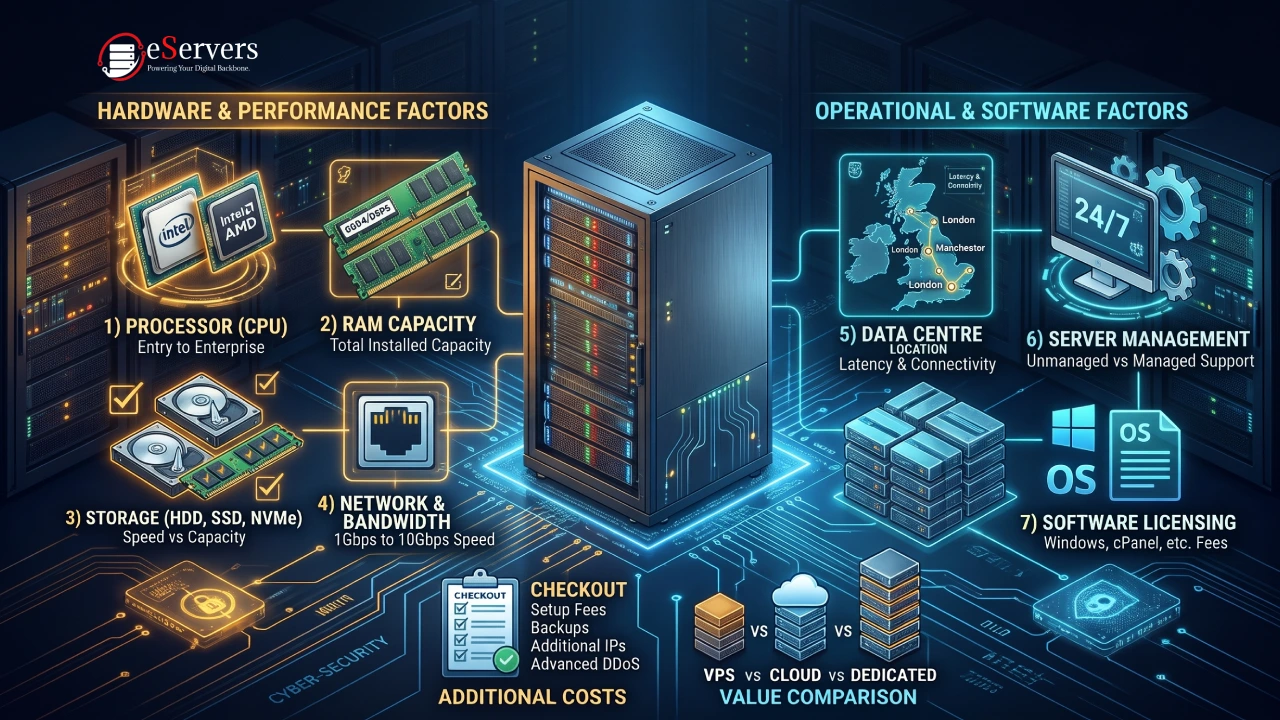
Select hardware based on the workload's requirements:
CPU cores and processing frequency.
RAM capacity and memory bandwidth.
NVMe or SSD storage performance.
RAID configuration and data redundancy.
Network bandwidth and connectivity.
Remote management and IPMI availability.
Review the eServers UK Dedicated Server Pricing to compare available configurations.
5. Deploy and Test the New Environment
Install the selected Windows Server version and configure the required server roles, applications, security policies, and network services.
Before moving production traffic, test:
Application functionality.
Database connectivity and integrity.
Active Directory authentication and replication, where applicable.
DNS resolution.
Firewall rules and network connectivity.
Backup and restore operations.
Storage performance and resource utilisation.
Testing in a separate environment helps identify issues before they affect production services.
6. Plan the Production Cutover
Once testing is complete, prepare a controlled migration and cutover plan.
Synchronise any remaining application data, confirm database consistency, and schedule the transition during an appropriate maintenance window.
Update DNS records and application endpoints where required. Monitor server performance, service availability, authentication, and application logs after the switch.
Maintain a documented rollback plan in case the new environment encounters critical issues.
7. Decommission Windows Server 2016
Do not immediately erase the old server after the migration.
First, confirm that:
All required data has been transferred.
Applications are operating correctly.
Users can access the migrated services.
Backups are functioning.
Monitoring systems report normal operation.
The business has approved the new environment.
Once migration is validated and the rollback period has ended, securely decommission the legacy server and dispose of stored data according to your organisation's data retention and security policies.
Frequently Asked Questions (FAQ)
When does Windows Server 2016 reach End of Support?
Windows Server 2016 reaches the end of its extended support period on 12 January 2027. After this date, it will no longer receive regular security updates, bug fixes, or standard technical support from Microsoft.
Will Windows Server 2016 stop working after 12 January 2027?
No. Windows Server 2016 installations can continue to run after the End of Support date. However, systems without eligible ESU coverage will no longer receive regular security updates, increasing their exposure to newly discovered vulnerabilities.
Can I continue using Windows Server 2016 after End of Support?
Technically, yes. However, continuing to operate an unsupported operating system can increase security, application compatibility, and compliance risks. Businesses should evaluate migration options or eligible ESU coverage before the deadline.
What are Extended Security Updates (ESU) for Windows Server 2016?
Extended Security Updates are a paid Microsoft programme that provides eligible systems with additional security updates after the standard support lifecycle ends. ESU is intended as a temporary solution while organisations complete their migration to a supported operating system.
Should I upgrade directly to Windows Server 2025?
Windows Server 2025 may be a suitable migration target for businesses that require its newer security, storage, and virtualisation capabilities. However, application compatibility, hardware support, and licensing requirements should be checked before migration.
Can I upgrade Windows Server 2016 without replacing my dedicated server?
In some cases, an in-place operating system upgrade may be possible, depending on the installed edition, upgrade path, applications, and hardware compatibility. However, for critical production workloads, provisioning a separate server and performing a clean installation can provide better opportunities for parallel testing, validation, and rollback planning.
Does eServers provide free Windows Server OS reinstallation?
eServers provides free OS reinstallation for eligible existing customers. This covers the operating system reinstallation process and should not be confused with a complete application or data migration service. Contact the support team to confirm the applicable requirements.
Prepare Your Infrastructure Before the January 2027 Deadline
Windows Server 2016 End of Support on 12 January 2027 is an important milestone for organisations that depend on Microsoft server infrastructure.
Waiting until the final weeks can leave IT teams with limited time to resolve application compatibility issues, validate backups, and complete production migrations.
By auditing existing systems, checking application requirements, selecting a suitable upgrade destination, and testing new infrastructure in advance, businesses can reduce migration risks and maintain service continuity.
At eServers.uk, you can explore modern bare metal dedicated server configurations and Windows Server operating system options to support your infrastructure requirements.
Ready to plan your Windows Server migration? Explore our UK Bare Metal Dedicated Servers or contact the eServers Support Team to discuss your hardware and operating system requirements.